 Atta 🐬
In this post
- What System Data is
- How much System Data is normal
- Where the space went on my Mac
- Why System Data got bigger in macOS 27
- Step 1: Check your free space
- Step 2: Use the built-in recommendations
- Step 3: Restart
- Step 4: Delete Time Machine local snapshots
- Step 5: Clear app caches and leftovers
- Step 6: Clear Xcode, simulators and Docker
- If System Data won’t go down
- What not to do
- Apps that show what’s in System Data
- Frequently asked questions
Quick answer
System Data is the catch-all category in your Mac's storage: caches, logs, Time Machine local snapshots, swap files, app data and developer files that don't fit Applications, Documents or the other categories. Since macOS 27 Golden Gate it also includes purgeable space, so 100 GB or more is normal. To shrink it, restart, delete local snapshots with tmutil, clear app caches in ~/Library/Caches, and remove old Xcode and Docker data if you develop. To see what's inside it item by item, use a disk analyzer like Diskly or DiskMate.
You open System Settings › General › Storage and the gray part of the bar, System Data, is 80, 150, sometimes 300 GB. There's no button to see what's in it and nothing to delete. On a 256 GB Mac, that can be half the disk.
System Data isn't a mystery folder, and most of it can be cleared or shrinks on its own. This guide explains what's in it, how much is normal, why it got bigger in macOS 27 Golden Gate, and how to get the space back without breaking anything.
What System Data is
Apple calls System Data a general category for Apple and third-party files that don't belong to a more specific one. It isn't a folder on the disk. macOS adds up Applications, Documents, Photos, Mail, Messages and the other categories, and whatever is used but left over is System Data.
Before macOS 12 Monterey, the same category was called Other. It's the same thing under a new name, so everything here applies to Other storage too.
That's why it can look so large: anything Storage settings doesn't recognize ends up there. Most of it is one of these:
| What | Where it is | Can you clear it? |
|---|---|---|
| App caches | ~/Library/Caches |
Yes. Apps rebuild what they need |
| Time Machine local snapshots | Inside the disk, not in a folder | Yes, with tmutil. macOS also removes them over time |
| Developer files: Xcode builds, simulators, Docker | ~/Library/Developer, ~/Library/Containers |
Yes, from the tools themselves |
| App data | ~/Library/Application Support, ~/Library/Containers |
Only from inside the app, or for apps you've deleted |
| Logs and crash reports | ~/Library/Logs, /private/var/log |
Yes, but they're rarely large |
| Swap files | /System/Volumes/VM |
No. A restart shrinks them |
| Temporary files | /private/var/folders |
Leave them to macOS. A restart clears most of them |
| Purgeable data (macOS 27) | Caches and snapshots macOS can remove | macOS removes it when it needs the space |
How much System Data is normal
There's no right number. It depends on the apps you use, how full the disk is and which macOS you're on.
- On macOS 15 Sequoia and macOS 26 Tahoe, 10 to 40 GB was common.
- On macOS 27 Golden Gate, 100 GB or more is common, for the reason below.
A better question is how much free space you have. Keep at least 10% to 20% of the disk free, and never less than about 20 GB, so macOS has room for swap, caches and updates. A nearly full disk is one of the things that slow a Mac down.
Look closer if System Data keeps growing day after day, or runs to several hundred gigabytes. That's usually Time Machine snapshots, one app's cache or developer data.
Where the space went on my Mac
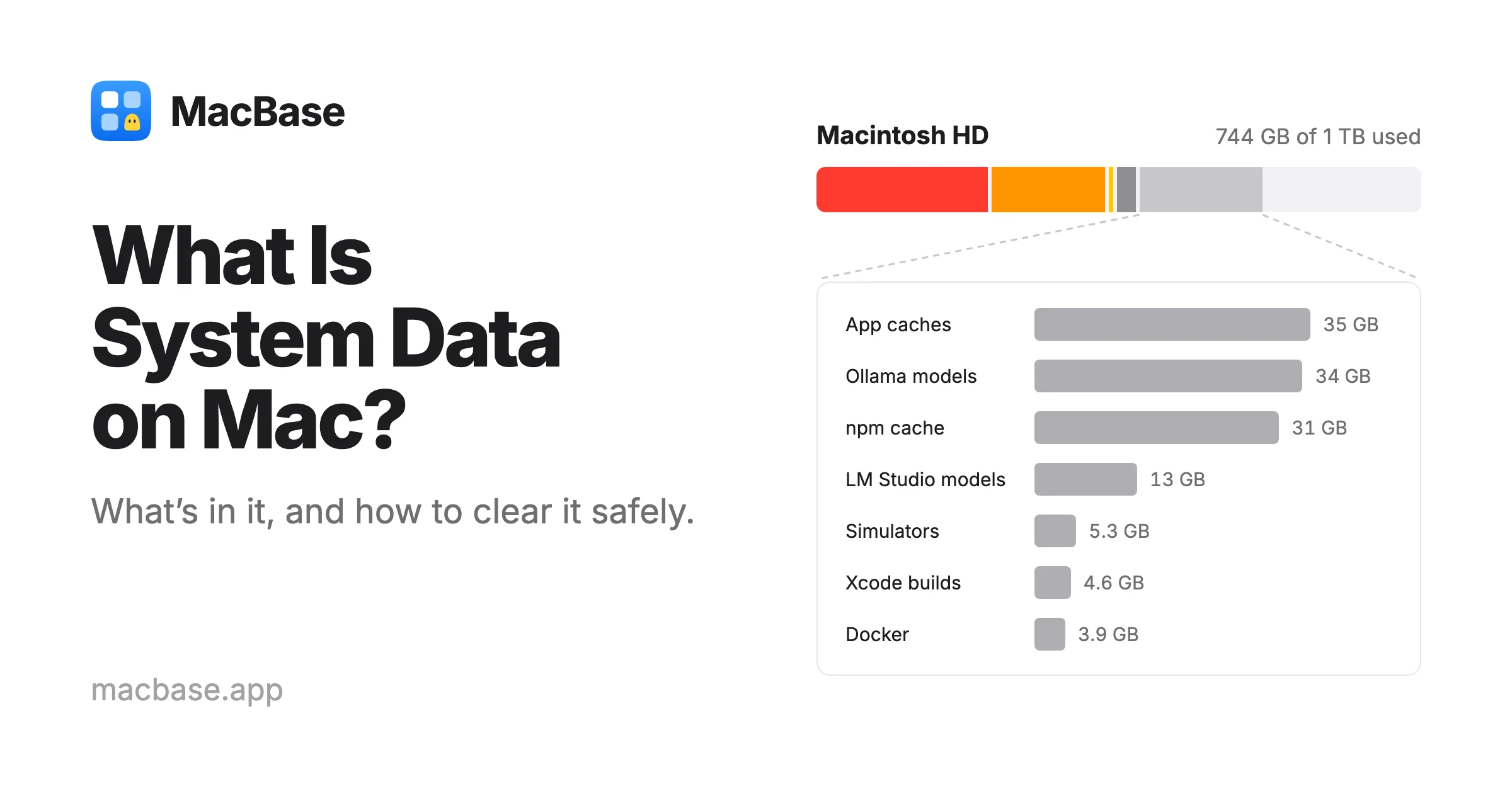
To see what this looks like on a real Mac, I measured the usual places on the 1 TB Mac I'm writing this on. It had no Time Machine local snapshots, and the largest were:
| What | Where | Size |
|---|---|---|
| App caches, Chrome's and Homebrew's among them | ~/Library/Caches |
35 GB |
| Ollama's local AI models | ~/.ollama |
34 GB |
| npm's package cache | ~/.npm |
31 GB |
| LM Studio's local AI models | ~/.lmstudio |
13 GB |
| Xcode's simulators | ~/Library/Developer/CoreSimulator |
5.3 GB |
| Xcode's build files | ~/Library/Developer/Xcode/DerivedData |
4.6 GB |
| Docker Desktop | ~/Library/Containers/com.docker.docker |
3.9 GB |
That's almost 130 GB, most of it in hidden folders and none of it listed by name in Storage settings. All of it can be cleared with the steps below, and most of it comes back only if you use those apps again.
Two folders were even bigger: Application Support, at 113 GB, and Containers, at 105 GB, as the Finder screenshot in Step 5 shows. They hold app data, not caches. On this Mac that's mostly local speech and AI models, browser profiles, code editor data and a 28 GB virtual machine. You can't clear them like a cache, only from inside each app or by deleting apps you no longer use, so they're not in the table.
Why System Data got bigger in macOS 27
Before macOS 27, Finder and Storage settings counted purgeable space, caches and snapshots that macOS can remove when it needs room, as available. You couldn't make macOS remove it, but it didn't count against you.
macOS 27 counts that space as used, inside System Data. Free space and available space are now the same number in Finder, Storage settings and Disk Utility. Nothing was lost when you updated. The space was never really free, and now it shows.
Two other things can make System Data look larger right after an update:
- macOS is still recalculating. For a few hours, sometimes a day, Spotlight re-indexes the disk and the categories are wrong. Restart, leave the Mac on and check again tomorrow.
- Apple Intelligence's models take more room in macOS 27. They count under macOS, not System Data.
Step 1: Check your free space
Storage settings takes a while to add everything up, and its numbers move while you watch. For the figure that counts, open Disk Utility, choose View › Show All Devices, and select the container your startup disk is in. Free is the space you actually have.
Finder shows the same thing: select Macintosh HD in the sidebar and press Command-I.
Step 2: Use the built-in recommendations
Open System Settings › General › Storage. The recommendations at the top free space in other categories, but free space is free space:
- Store in iCloud keeps files, photos and messages in iCloud and only what you use recently on the Mac.
- Optimize Storage removes movies and TV shows you've watched from the Apple TV app.
- Empty Trash Automatically deletes items that have been in the Trash for 30 days.
Then click the Info button (i) next to a category to clean it up. The ones that are often large:
- Documents, which lists your largest files and your Downloads folder.
- iOS Files, with old iPhone and iPad backups. Delete the ones you don't need.
- Applications, where you can sort apps by size and see when you last used them.
- Developer, if you have Xcode, with its caches and build files.
While you're there, check Applications for an Install macOS app left over from an update. It can be over 15 GB.
Step 3: Restart
A restart removes swap files and most temporary files, ends stuck processes and lets macOS finish cleaning up. If your Mac hasn't restarted in weeks, System Data often drops by several gigabytes.
Starting up in safe mode clears some system caches too. Restart normally afterwards.
Step 4: Delete Time Machine local snapshots
When Time Machine is on, macOS keeps local snapshots on the internal disk, one an hour for the last 24 hours, so you can restore files even when the backup disk isn't connected. They often take tens of gigabytes, and they count as System Data.
To see them, open Disk Utility, select your startup volume and choose View › Show APFS Snapshots. Or open Terminal and type:
tmutil listlocalsnapshots /
To delete them all:
sudo tmutil deletelocalsnapshots /
Type your Mac's password when asked. This doesn't touch the backups on your backup disk, only the copies on the Mac, and Time Machine makes new ones as it goes.
Other backup apps, like Arq and Carbon Copy Cloner, can leave their own snapshots too. If Disk Utility lists snapshots that aren't Time Machine's, check that app's settings, which decide how long it keeps them.
Step 5: Clear app caches and leftovers
Most of what's left is in the Library folder in your home folder, ~/Library, which Finder hides. To open it, hold Option, click the Go menu and choose Library.
Switch to list view, press Command-J and turn on Calculate all sizes, then sort by Size. The folders worth checking:
- Caches, in
~/Library/Caches. Quit an app, then delete its folder here. It rebuilds what it needs the next time it opens. - Application Support and Containers, in
~/Library/Application Supportand~/Library/Containers. These hold app data, not caches, so don't delete them for apps you use. Folders for apps you've already deleted are safe to remove. - Messages and Mail attachments. Delete these from inside the apps, or from Messages in Storage settings.
Many apps can clear their own caches, which is safer than deleting their folders. The ones that grow largest:
| App | Where to clear it |
|---|---|
| Google Chrome | Settings › Privacy and security › Delete browsing data, then Cached images and files |
| Safari | Settings › Advanced, turn on Show features for web developers, then Develop › Empty Caches |
| Slack | Help › Troubleshooting › Clear Cache and Restart |
| Spotify | Settings › Storage › Clear cache |
| Telegram | Settings › Data and Storage › Storage Usage, or Settings › Advanced › Manage local storage in Telegram Desktop |
| Final Cut Pro | Select a library, then File › Delete Generated Library Files |
| Premiere Pro | Settings › Media Cache, then Delete |
| Ollama | ollama list shows your models, and ollama rm with a model's name removes it |
| LM Studio | Delete models you don't use from My Models |
Local AI models, like Ollama's and LM Studio's, live in hidden folders in your home folder, ~/.ollama and ~/.lmstudio. Press Command-Shift-period in Finder to show hidden files, but remove the models from inside the apps.
Step 6: Clear Xcode, simulators and Docker
If you build software, developer tools are often the largest part of System Data, and they're the easiest to clear:
- Xcode's build files. Delete the folders in
~/Library/Developer/Xcode/DerivedData. Xcode rebuilds what it needs on the next build. - Simulators. In Xcode, choose Settings › Components and delete runtimes you don't need. To remove simulators for runtimes you no longer have, run
xcrun simctl delete unavailable. - Docker.
docker system dfshows what Docker is using, anddocker system pruneremoves stopped containers, unused networks and the build cache. Docker Desktop keeps everything in one disk image, and its size limit is in Settings › Resources. - Package caches.
npm cache clean --forceclears npm's cache in~/.npm, andbrew cleanupclears old Homebrew downloads.
If System Data won't go down
If you've restarted, deleted the snapshots and cleared caches, and System Data is still far larger than you'd expect:
- Wait a day after an update. macOS recalculates the categories in the background, and the number is often wrong until it finishes.
- Check for snapshots again. Time Machine makes new ones every hour, and other backup apps keep their own. Disk Utility's View › Show APFS Snapshots lists them all.
- Rebuild the Spotlight index. If Storage settings stays on Calculating… or its numbers make no sense, the index may be damaged. Open System Settings › Spotlight, click Search Privacy, click + and add Macintosh HD. Wait a few seconds, select it, click – and click Done. Spotlight indexes the disk again, which can take a few hours, and the categories are recalculated.
- See what's actually there. Storage settings only guesses at System Data. A disk analyzer, like the apps below, shows which folders are large.
- As a last resort, start fresh. Back up with Time Machine, erase the Mac, then restore only your user account in Setup Assistant and reinstall the apps you use.
What not to do
- Don't delete folders in
/System,/Libraryor/private/var. Much of it is protected anyway, and deleting files in/private/var/folderswhile apps are running can break them. - Don't run commands you don't understand from forums or AI answers.
- Be wary of "cleaner" apps that clear System Data in one click. Use one that shows each item, says what it is and moves it to the Trash, so you can put it back.
Apps that show what's in System Data
Storage settings can't open System Data, and Finder hides most of it. A disk analyzer shows it folder by folder, with what's safe to remove.
Diskly opens System Data item by item: caches, backups, developer files and forgotten installers, each with its size, where it is and a plain explanation. It suggests only caches that rebuild themselves and leaves macOS files, app data and your libraries alone. You can undo a removal for five seconds, and watch free space from the menu bar.
DiskMate maps the whole disk, or a folder or external drive, by folder, file type, size and age. It finds large files, caches, logs, duplicates, old downloads and app leftovers, and moves what you choose to the Trash.
SpaceWise and Shedi are for developers. They find node_modules, Docker data, Xcode builds, simulators and package caches, and say whether each will come back. SpaceWise checks lockfiles and Git activity before suggesting a project, and Shedi labels each item Safe, Check first or Your files.
DriveMyMac is for when you'd rather keep your files. It turns the cloud storage you already pay for, like Google Drive, Dropbox or iCloud Drive, into a drive in Finder, so you can move big projects and old work off the Mac.
| App | Best for | Price | Requires |
|---|---|---|---|
| Diskly | Seeing inside System Data | $9, after a 14-day free trial | macOS 14 Sonoma |
| DiskMate | Mapping the whole disk | $5 | macOS 14 Sonoma |
| SpaceWise | Developer files | $7.99 | macOS 11 Big Sur |
| Shedi | Developer files | $19.99 | macOS 15 Sequoia |
| DriveMyMac | Moving files to the cloud | $5.99 | macOS 15.4 Sequoia |
For more, browse Cleanup & Storage apps on MacBase.
Frequently asked questions
What is System Data on a Mac?
It's the storage category for everything that doesn't fit Applications, Documents, Photos or the others: caches, logs, Time Machine local snapshots, swap files, app data and developer files. In macOS 27 it also includes purgeable space that macOS can remove when it needs room.
Is System Data the same as Other storage?
Yes. Apple renamed Other to System Data in macOS 12 Monterey. What's in it didn't change.
Is it safe to delete System Data?
Not all at once, and there's no button for it. Caches, Time Machine local snapshots, Xcode build files and old simulators are safe to remove. App data, swap files and anything in /System or /private/var are not.
Why is my System Data so big?
Usually Time Machine local snapshots, an app's cache, local AI models or developer tools like Xcode and Docker. On macOS 27, purgeable space counts as System Data too, so 100 GB or more is common.
Why did System Data grow after updating to macOS 27?
macOS 27 counts purgeable space, caches and snapshots macOS can remove when needed, as used space inside System Data. Before, it counted as available. You didn't lose any space; it's counted differently.
How do I reduce System Data without an app?
Restart, delete Time Machine local snapshots with sudo tmutil deletelocalsnapshots /, clear app caches in ~/Library/Caches or from inside the apps, and remove Xcode's DerivedData and unused simulators if you develop.
Does restarting reduce System Data?
Often, yes. A restart removes swap files and most temporary files, and lets macOS finish cleaning up after an update.
How much free space should a Mac have?
At least 10% to 20% of the disk, and never less than about 20 GB, so macOS has room for swap, caches and updates.
Written by
I build cool Mac apps. Founder, MacBase.