 Atta 🐬
In this post
- Before you install anything
- 1. Raycast: open anything from the keyboard
- 2. Vitals: see which app is slowing your Mac
- 3. SoundBar: volume for each app
- 4. Rectangle: snap windows with shortcuts
- 5. Maccy: clipboard history
- 6. Flit: dictation that stays on your Mac
- 7. Shottr: screenshots
- 8. Tucket: clipboard history, sorted
- 9. IINA: play any video
- 10. The Unarchiver: open any archive
- 11. Amphetamine: keep your Mac awake
- 12. LinearMouse: make a mouse feel right
- 13. Pearcleaner: remove apps completely
- 14. Diskly: see what’s filling your storage
- 15. Halo: make the MacBook notch useful
- Tips for setting up a new Mac
- Frequently asked questions
Quick answer
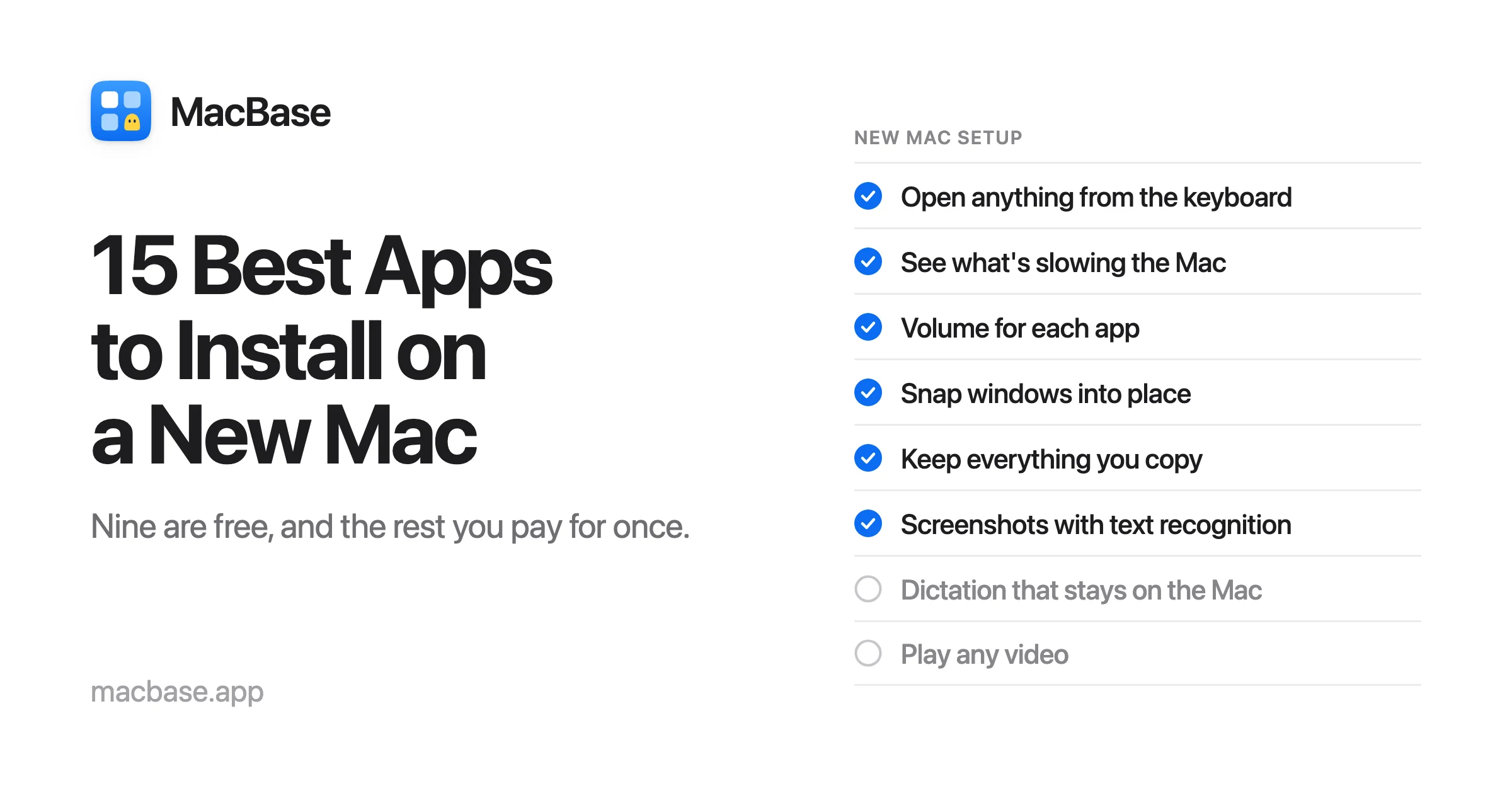
The best apps to install on a new Mac in 2026 are Raycast to open anything from the keyboard, Vitals to see which app is slowing it down, SoundBar to give each app its own volume, Rectangle to snap windows, Maccy or Tucket for clipboard history and Shottr for screenshots. Add Flit for dictation, IINA for video, The Unarchiver for archives and Pearcleaner to remove apps completely. Nine of the 15 are free, and the paid ones cost $6.99 to $15 once. Set up Software Update, Passwords and Time Machine first.
A new Mac does a lot on its own, but a few small apps make it feel like yours from the first day: one to open anything from the keyboard, one to snap windows into place, one to remember everything you copied.
I picked 15, one for each job, and left out anything macOS 26 now does well by itself. Nine are free. The six paid ones cost $63 together, once, less than a year of most single subscriptions.
| # | App | What it's for | Price |
|---|---|---|---|
| 1 | Raycast | Opening apps, files and anything else from the keyboard | Free, Pro $8 a month |
| 2 | Vitals | Seeing which app is slowing your Mac | $12, or $19 lifetime |
| 3 | SoundBar | Volume for each app | $6.99 once |
| 4 | Rectangle | Snapping windows with shortcuts | Free |
| 5 | Maccy | Clipboard history | Free |
| 6 | Flit | Dictation that stays on your Mac | $15 once |
| 7 | Shottr | Screenshots you can mark up and read text from | Free, pay what you want |
| 8 | Tucket | Clipboard history, sorted, with text from images | $10 once |
| 9 | IINA | Playing any video | Free |
| 10 | The Unarchiver | Opening RAR, 7z and other archives | Free |
| 11 | Amphetamine | Keeping your Mac awake | Free |
| 12 | LinearMouse | Making a mouse feel right | Free |
| 13 | Pearcleaner | Removing apps and their leftovers | Free |
| 14 | Diskly | Seeing what's filling your storage | $9 once |
| 15 | Halo | Making the MacBook notch useful | $9.99 once |
Before you install anything
Set up what macOS already does, so you don't pay for an app to do it again:
- Software Update. Open System Settings › General › Software Update and install what's waiting. There's often an update or two to catch up on.
- Passwords. Since macOS 15 Sequoia, the Passwords app keeps your passwords, passkeys and verification codes, synced with iCloud Keychain to your iPhone. For most people, it replaces a paid password manager.
- Time Machine. Plug in an external drive and turn it on in System Settings › General › Time Machine. It backs up every hour on its own.
- Window tiling. Since macOS 15, you can drag a window to the edge of the screen to fill half of it, or use the Window › Move & Resize menu.
- The menu bar. In macOS 26 Tahoe, System Settings › Menu Bar has a switch for every app's icon. For more, see the 15 best menu bar apps for Mac.
1. Raycast: open anything from the keyboard
Spotlight got better in macOS 26, and Raycast still goes further. Press its shortcut, type a few letters, and open an app, a file, a website or a system setting. It also does sums, converts units, and runs hundreds of free extensions for apps like GitHub, Notion and Spotify.
The free plan includes clipboard history (three months of it), window management and text snippets, so it can snap windows and remember what you copied on its own. Pro, $8 a month paid yearly or $10 monthly, adds AI and syncing. Compare it with other Raycast alternatives, like Superhound, a free Spotlight replacement that forgives typos.
2. Vitals: see which app is slowing your Mac
A new Mac is fast, until something isn't. Activity Monitor lists hundreds of processes; Vitals adds them up into the apps they belong to, with each app's CPU, memory, energy, disk and network, and up to a year of history.
In the menu bar it keeps CPU, memory, temperature, fans and battery one click away. It's $12 with a year of updates, or $19 for life, with a 3-day free trial, and needs macOS 15. Compare it with other iStat Menus alternatives, or read how to find what's slowing your Mac.
3. SoundBar: volume for each app
macOS has one volume for everything. SoundBar gives every app that plays sound its own slider, from 0 to 200%, with mute, so you can turn a video down and a call up and leave the music where it is. It opens from the MacBook's notch, or from the menu bar on a Mac without one.
Each app can also have its own equalizer and output, so music plays on the speakers while a call goes to your AirPods. Other apps fade down when one starts using the microphone, and each app keeps its settings between launches. It's $6.99 once, with a 3-day free trial, and needs macOS 15. Compare more SoundSource alternatives.
4. Rectangle: snap windows with shortcuts
macOS can tile windows now, but Rectangle makes it quick: Control-Option and an arrow key sends a window to half the screen, and other shortcuts cover thirds, quarters, the full screen and the next display. You can also drag a window to an edge or a corner.
It's free and open source, and needs macOS 14. A paid Pro version adds more layouts and options. To see every window at once and arrange them on one canvas, try Pane. Compare more Rectangle alternatives.
5. Maccy: clipboard history
Spotlight in macOS 26 keeps what you copied, for up to a week, but you can't pin anything or keep it longer. Maccy keeps as much as you like. Press Shift-Command-C, type to search, and paste anything you copied earlier: text, links or images. Pin the things you paste every day to the top.
It's free and open source, needs macOS 14, and keeps everything on your Mac. It's also sold on the Mac App Store, which is a way to support the developer. Compare more Maccy alternatives.
6. Flit: dictation that stays on your Mac
Flit turns your voice into finished text in any app. Hold a key, talk, let go, and the text lands where your cursor is, with the fillers and false starts gone, and numbers, dates and links written the way you'd type them.
Everything runs on the Mac, with no account and no cloud, so it works offline. It learns the names and terms you use, and can transcribe a meeting or a voice memo you drop in. It's $15 once, with a 7-day free trial, and needs macOS 14. Compare it with other Wispr Flow alternatives and superwhisper alternatives.
7. Shottr: screenshots
macOS takes good screenshots with Shift-Command-4. Shottr does what it doesn't: scrolling captures of long pages and chats, copying the text out of any part of the screen, reading QR codes, measuring in pixels, and marking up a screenshot with arrows, text and highlights the moment you take it.
It's free to use for as long as you like, and asks now and then if you'd like to pay, any amount you choose. For screen recordings and cloud links too, CleanShot X is $35 once, with a year of updates. Compare more Shottr alternatives.
8. Tucket: clipboard history, sorted
Maccy, above, is one long list. Tucket pulls down from the notch and sorts everything you copy by type: text, links, colors, images, SVGs and icons. It reads the text inside every picture you copy, so you can find a screenshot by a word in it and copy that text out.
Pinboards keep the clips you reuse, like a trip's bookings or a brand's colors, and are never cleared. You can add a note to a clip, or a reminder to bring it back. It leaves out passwords, keys and card numbers, pastes any of your last ten clips with a shortcut, and keeps everything on your Mac. It's $10 once and needs macOS 14. Compare more Paste alternatives.
9. IINA: play any video
QuickTime Player opens fewer formats than you'd expect. IINA plays nearly anything, in a window that looks at home on a Mac, with picture in picture, subtitles it can find online, and trackpad gestures to seek and change the volume.
It's free and open source, with no tracking, and needs macOS 12. Compare more IINA alternatives.
10. The Unarchiver: open any archive
The Mac opens ZIP files on its own, but not much else. The Unarchiver opens RAR, 7-Zip, Tar, Gzip, ISO and BIN disc images, and even some Windows installers, with a double-click.
It's free on the Mac App Store. Compare more The Unarchiver alternatives.
11. Amphetamine: keep your Mac awake
A Mac goes to sleep when it decides you've left. Amphetamine keeps it awake from the menu bar, for as long as you choose, while an app is running or until a download finishes. It can keep a MacBook awake with the lid closed too, which on Apple silicon needs a small helper you install with your password.
It's free on the Mac App Store, with no in-app purchases. Levers keeps a Mac awake too, alongside 60 other settings in one click, for $9. For a MacBook that has to keep working with its lid closed and no display attached, there's Keep Mac Awake. Compare more Amphetamine alternatives.
12. LinearMouse: make a mouse feel right
If you use a mouse as well as the trackpad, you'll notice macOS has one scroll direction for both, so one of them always feels backwards. LinearMouse keeps natural scrolling on the trackpad and reverses it on the mouse. It can also turn off mouse acceleration, so the pointer moves the same distance every time.
It's free and open source. Compare more LinearMouse alternatives.
13. Pearcleaner: remove apps completely
Dragging an app to the Trash leaves its settings, caches and support files behind in your Library folder. Pearcleaner finds those files when you remove an app, and can search for leftovers from apps you've already deleted.
It's free, needs macOS 13, and installs with brew install --cask pearcleaner if you use Homebrew. Its source is public, under a license that doesn't allow selling it. Compare more Pearcleaner alternatives.
14. Diskly: see what's filling your storage
A new Mac's storage fills faster than you'd think, much of it in the gray System Data part of the storage bar. Diskly opens it up item by item: caches, backups, developer files and old installers, each with its size, where it is and what it is, in plain words.
It suggests only caches and files it knows are safe to remove, and lets you undo a removal for five seconds. It also finds duplicates and removes apps with their leftovers. It's $9 once after a 14-day free trial, and needs macOS 14. Compare it with other DaisyDisk alternatives, or read what System Data on a Mac is and how to clear it.
15. Halo: make the MacBook notch useful
On a MacBook, the notch is dead space. Halo turns it, or the top edge of any display, into a live strip for notifications, music, calls, meetings, timers and files, like the Dynamic Island on an iPhone. Holding Fn lets you dictate into the app you're in.
It's $9.99 once, needs no account, and needs macOS 15. Compare more NotchNook alternatives.
Tips for setting up a new Mac
- Download from the Mac App Store or the developer's own site. Sites that bundle installers for many apps are where adware comes from.
- Prefer paying once. Three $5 subscriptions cost $180 a year. All six paid apps here cost $63 together, once.
- Add apps as you need them. A new Mac is at its fastest before it's full of things that open at login. Check System Settings › General › Login Items & Extensions now and then.
- Look for deals. Many Mac apps are on sale for Black Friday and Cyber Monday. SoundBar is 69% off until December 5, and Vitals and Flit are 40% off and Halo 35% off from November 20, among the best Black Friday Mac app deals.
Frequently asked questions
What are the must-have apps for a Mac?
For most people: a launcher (Raycast), a way to see what's slowing the Mac (Vitals), a volume for each app (SoundBar), a window manager (Rectangle), clipboard history (Maccy or Tucket) and a screenshot tool (Shottr). Add the rest as the need comes up: dictation, video, archives, a mouse, storage and the notch.
What should I do first on a new Mac?
Install the waiting software updates, sign in with your Apple Account so iCloud and the Passwords app sync, and turn on Time Machine with an external drive. Then add apps one job at a time, starting with a launcher like Raycast and a window manager like Rectangle.
Should I use Migration Assistant or set up a new Mac from scratch?
Migration Assistant copies your apps, files and settings from your old Mac, and is the quickest way to pick up where you left off. Setting up from scratch takes longer but leaves behind old apps, settings and files you no longer need. If your old Mac had problems, start fresh and copy only your files.
Are free Mac apps safe?
The free apps here are well known, and four of them are open source, so anyone can read their code. Download from the Mac App Store or the developer's own site: macOS checks that an app from outside the App Store is signed by a known developer and scanned by Apple before it opens.
How do I install an app that isn't on the Mac App Store?
Download it from the developer's site, open the file, and drag the app into your Applications folder. The first time you open it, macOS asks whether you're sure. If you use Homebrew, most of the free apps here install with one command, like brew install --cask rectangle.
See every app on MacBase, sorted by category, with its price and the macOS it needs. If you've made one, list it for free.
- Mac
- Mac Apps
- macOS
- MacBook
- Productivity
Written by
I build cool Mac apps. Founder, MacBase.
More in Roundups
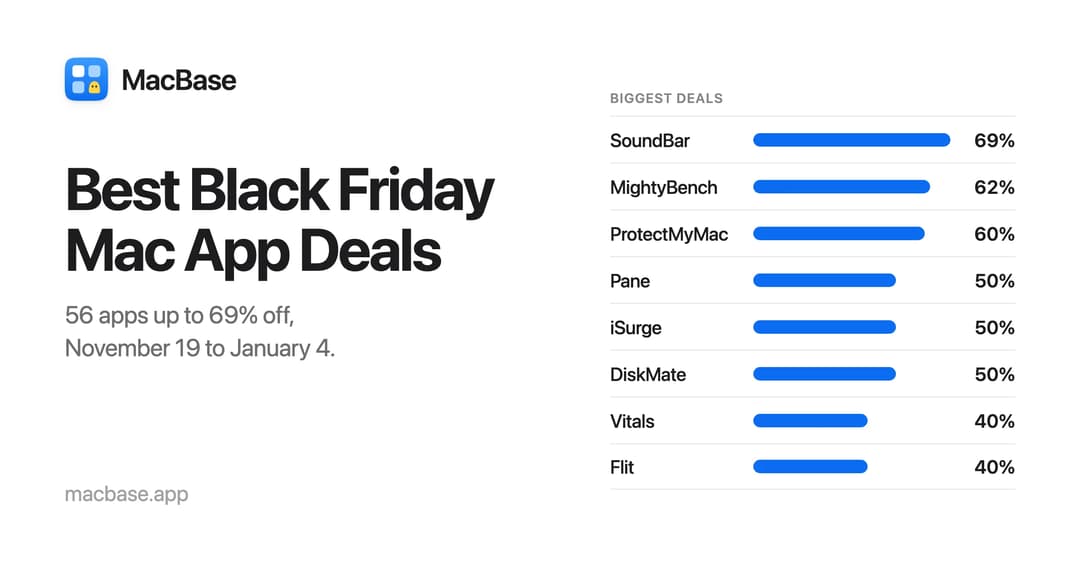
Best Black Friday Mac App Deals 2026 (Up to 69% Off)
The best Black Friday and Cyber Monday 2026 deals on Mac apps, straight from their makers: 56 apps up to 69% off, from menu bar apps and window managers to dictation and system tools, with when each deal ends.
Nov 11, 2026 · 10 min read
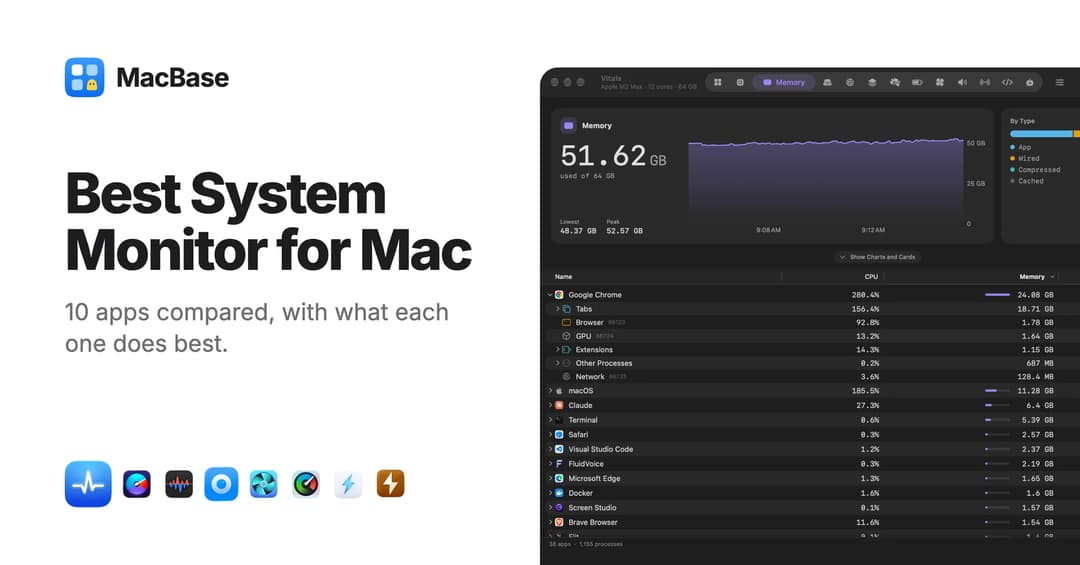
Best System Monitor for Mac: 10 Apps Compared (2026)
The 10 best system monitor apps for Mac in 2026, compared: Vitals, iStat Menus, Stats, ProcessSpy, TG Pro, Macs Fan Control, btop and more, with prices and the jobs each one covers.
Nov 10, 2026 · 16 min read
14 Best Menu Bar Apps for Mac (2026)
The 14 best menu bar apps for Mac in 2026, one for each job: system stats, hiding icons, clipboard history, the notch, per-app volume and more, with prices and the macOS each needs.
Nov 9, 2026 · 10 min read